
Prepare a print-ready children's book PDF for KDP
Set the book's trim size before arranging the pages, export the interior and cover files, then check both in KDP's Print Previewer. This guide shows where MyStoryBot fits and what to check at each step.
Pro Author includes the spread layout designer and KDP export options.
Export the cover wrap and manuscript
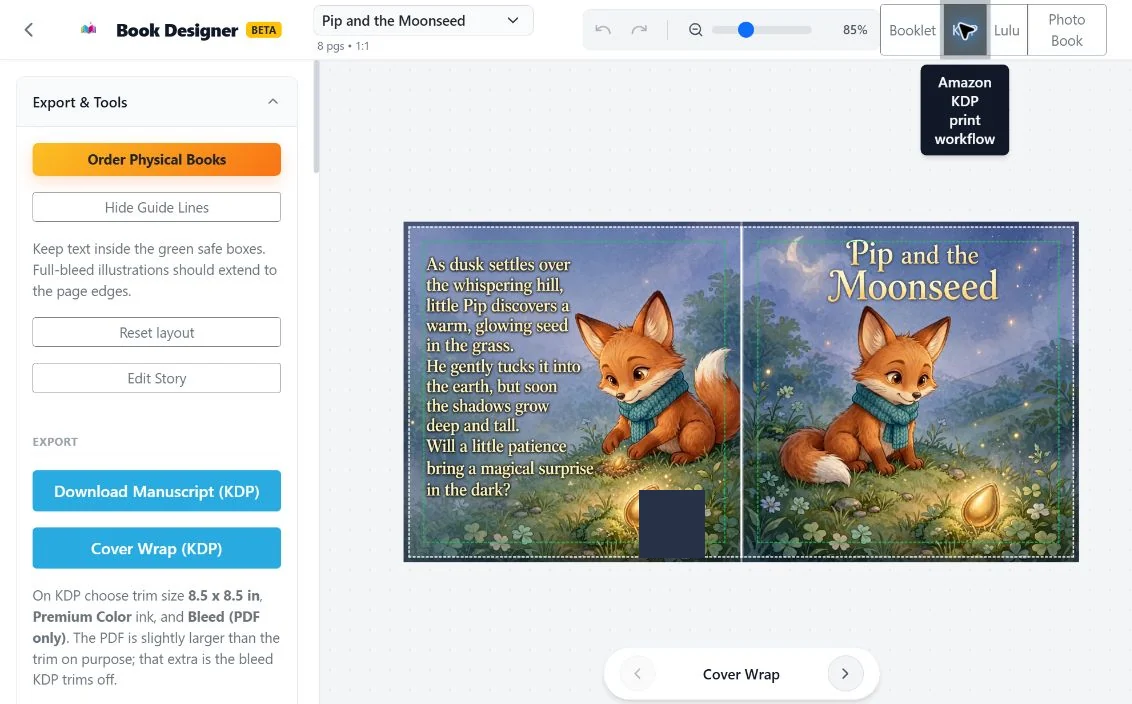
We opened Pip and the Moonseed in Book Designer, selected KDP, and used the two buttons under Export. For this square book, the designer shows an 8.5 × 8.5 inch trim size. Check the settings for your own book before exporting.
Check the interior and cover before upload
- Choose trim size and bleed. Use your intended KDP print settings in the layout. If art reaches the edge, follow KDP's bleed requirements and keep text inside the safe area.
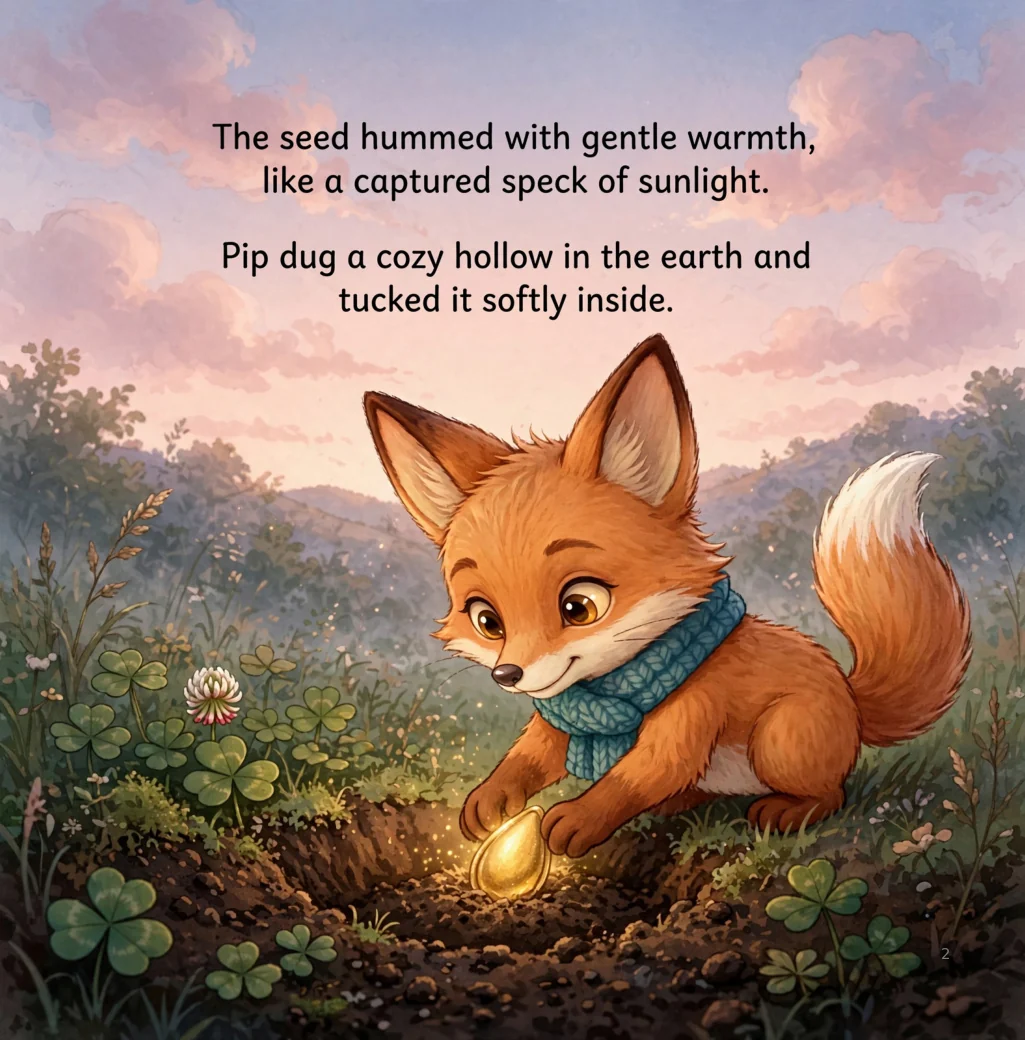
- Review the interior PDF. Check page order, intentional blank pages, readable text and image quality. Make sure artwork and type near the fold still read well.
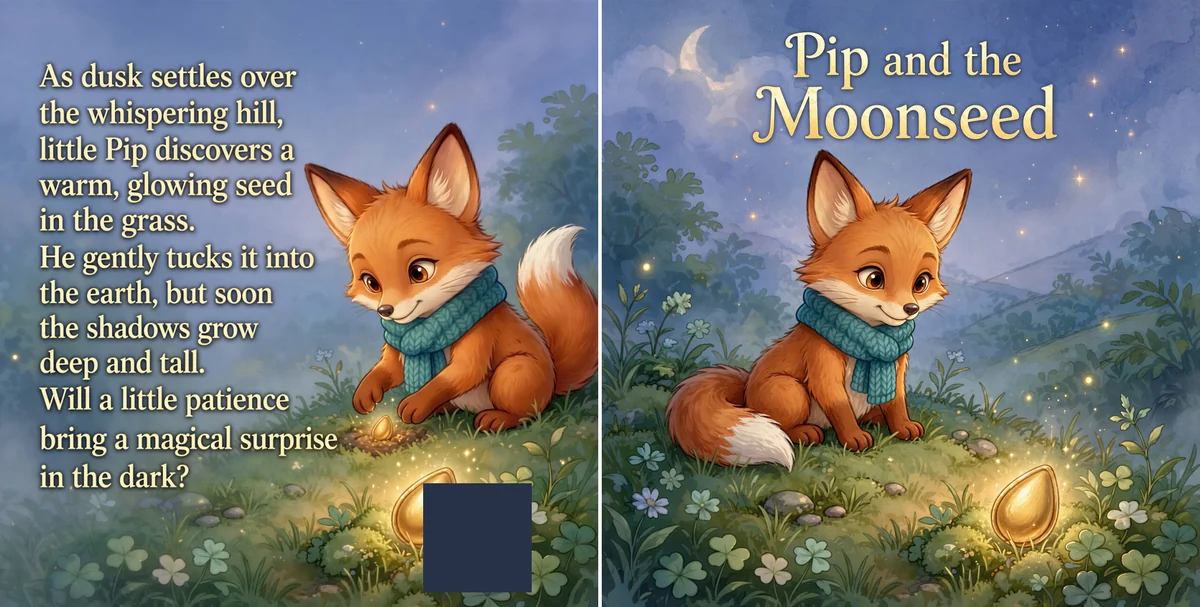
- Size the cover for the final interior. Use the final page count, trim and paper settings to calculate cover dimensions. Check that the book title matches the interior and listing.
- Preview and proof. Upload the interior and cover in KDP, review them in Print Previewer and consider ordering a physical proof before publishing.
Use Amazon KDP's print specifications and its cover calculator for the dimensions that apply to your book.
Disclose generated art when publishing
KDP requires authors to disclose AI-generated text, images and translations when publishing or republishing. That includes generated cover and interior art. Review KDP's content guidelines and the licensing terms for your MyStoryBot plan.
Starting from a finished story? See how to illustrate your manuscript before laying it out.